Videos
Note : the video show the old Sketchup plugin installation method. For the RBZ see below.
Please check the path of your installation of Imagemagick and update it accordingly in eagleUp parameters.
You can watch the videos in full screen for better comfort.
Download and Installation
To run eagleUp you need to download and install three softwares:
- Cadsoft Eagle (the freeware version is sufficient for small boards)
- Sketchup (freeware version)
- ImageMagick (I recommend ImageMagick-x.x.x-x-Q8-x64-dll.exe, freeware)
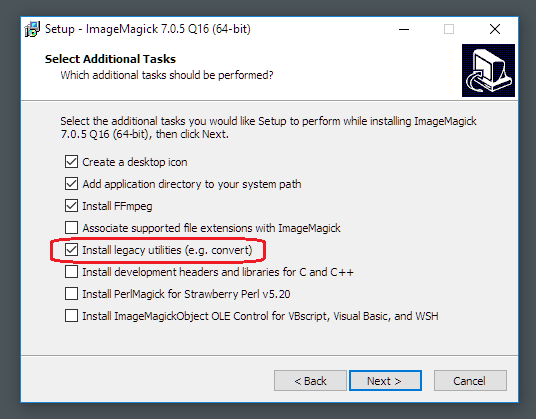
Note with ImageMagick 7 you need to tick the box Install legacy utilities during the installation.
eagleUp
- eagleUp_export.ulp goes to the ULP folder of Eagle, for example C:\EAGLE-7.1.0\ulp
- eagleUp_import.rbz is now installed via Sketchup Extension manager, see below
- the content of /models can be placed anywhere. I recommend to copy it near your libraries, for example in C:\EAGLE-7.1.0\models
- the Eagle demo files can be placed anywhere.
RBZ installation
- open Sketchup and go in Window/Preferences or Sketchup / Preferences on OS X.
- click on the extension tab
- then on the install extension button
- locate the rbz file and validate the popups
Initial Setup
When you launch eagleUp_export.ulp the first time, a window will appear and help you configure the paths so that eagleUp knows where to look for models and for the image utilities.

Click set for Windows or set for OS X depending on your system. If you have installed the recommended software in the recommended paths, that is enough. If you have older versions you can easily edit the paths by hand.
Windows users, please note that you need to use forward slash (/) and not the backward version (\).
The models path should be terminated with a /.
Please check the path of your installation of Imagemagick and update it accordingly in eagleUp parameters.
You only need to edit these settings at first use. The settings are saved in the configuration file and will be restored at the next launch. If you need to edit again these settings, press the edit Sketchup settings in the main window.
For Eagle version 5.10 and above, settings are recorded internally by Eagle (in the eaglerc.usr file). For the earlier versions these functions did not exist, so the settings are recorded in the /ulp folder, for example in C:/Program Files/EAGLE-X.Y/ulp/eagleUp_export.settings.txt Contact me if this location is an issue for you.
If you have a 5.x version of Eagle installed, I recommend upgrading to the latest 5.11. It’s stable and the upgrade is free.
Setup for OS X
Some new hints for Mac users from Lieven. Installing ImageMagick on OS X is very easy through HomeBrew : just ‘brew install imagemagick‘. The default installation path is then ‘/usr/local/bin/convert’ and ‘/usr/local/bin/composite’ instead of ‘/usr/opt/…’ that is currently default for OS X.
According to recent comments the newest ImageMagick version do not work well (texture missing on the PCB). Try installing the older 6.7.5-7 version until a fix is found.
Some hints for Mac users from Tom.
You can install ImageMagick by using MacPorts – visit http://www.macports.org/ to get MacPorts, then at the command line run :
sudo port install imagemagick
By default MacPorts installs applications in /opt/local/bin
So if you’ve installed Eagle in the general “Applications” folder on your Mac then as suggested put the eagleUp models in the Eagle folder.
eagleUp_import.rb goes in the following folder:
/Library/Application Support/Google SketchUp 8/SketchUp/plugins
That’s NOT the Library folder from your home folder, it’s main one off the root folder.
Linux
Eagle and Image Magick are available natively for the linux OS. You can run Sketchup via wine :
 Eagle meets SketchUp
Hello.
Works just fine (with your demo Board).
Cause i got an Error with the Eagle examples i made my own board (fast, only Chips and connectors) but also got the Error: “Unbekannter Layer: 116” where i can click OK or Abbrechen.
If i click OK and import to SketchUp it works with my own PCB but not with the examples.
The there a Chance you are designing more standard Models like S08, MLF32, MiniUSB, 0805Chip?
*Searching for a good copper color. <- Is it Possible to use Pictures as Color?
Thanks
Michael Dierken
Hello Michael,
1) I am not sure I understand your message properly. Can you get to the 3D model with the demo files I have provided ?
2) I have seen the error about “layer 116” appear at first use. I will fix it in the next update.
3) You already have SO08-150 and mini USB models in the zip file. You may need to rename them according to your Eagle package name (they come from the older versions of eagleUp). For the others you can either draw them yourself (which I strongly recommend) or wait for the warehouse to open 🙂
4) The board colors are defined by two RGB colors : one for the mask over copper, and one for mask over FR4. Feel free to suggest combinations in the comments. For information you can set these values yourself, lines 80 and 81 of the ULP.
Thanks,
Jerome
1) Yes i can.
2) thanks
3) WIll look
4) If i edit the RM Comment where will the Pictures be?, how can i edit the Mask by myself?
Please send me your own .brd that does not work file by email.I will check what’s wrong.
By RM I guess you mean line 36 of eagleUp_import.rb
This command is used to delete temporary files generated during image creation. They are useless so I delete them to avoid messing your folders. The temporary images are generated in the same folder as the other image, i.e. in the same folder as your .brd file.
You can edit the colors by yourself for your tests, change the first value of the line 80, and the first value line 81 (of the ULP file). Then choose to export as green board. Then import into Sketchup.
One issue with the colors, is that we apply a single color over the whole board. If you look at a close-up photo of a real board, you will notice that the color is not homogeneous, but has many shades.
Jerome
Hello Jerome
Nice work you’ve done. I have a problem. After exporting from Eagle, I can’t import the .eup into SketchUp.
It runs all the windows, but doesn’t place anything into sketchup.
Any idea why?
Hello Christian,
Please check your settings at the top of the .rb file
In particular check the decimal sign, and the model path, it should use / and not \
It should also finish by a /.
Do you have any error messages popping up ?
Is the board appearing ? With correct images on top & bottom ?
Jerome
the ‘,’ changed it all. Thanks man 🙂
Any change you can import thwe packages from Eagle 3D and use them in models?
It would be easy, instead of designing all models by hand 🙂
Models from eagle 3D are not compatible.
If you design boards seriously you are already designing your eagle devicescyourself, so try to make a sketchup model. It’s very simple.
After following the tutorial for model creation I am sure you can build a model in a few minutes top.
I will open a part warehouse, so you can find good models for common parts. But for that I will need user contribution !
Jerome
Just for information, I’m using Win7Ultimate French version, the decimal separator is ‘,’ (comma), and even by changing
# Define decimal separator (can be . or ,)
DECIMAL_SEPARATOR = “.”
to use comma instead of dot, when importing in sketchup, it creates board images (in png…) but it never opened anything in 3D.
I had to change the windows decimal separator to dot (.) to make everything work as expected.
Thank you for this great plugin, really awesome work.
Hi,
Great work. But I can’t import the board to SketchUp, the plugin shows all the windows but at the end nothing appears. I change the (.) for a (,) in this case doesn’t show the windows.
Any idea?
Hi,
1) do you see the PCB appear in Sketchup ?
2) do you have a message box with a list of missing package at the end ?
3) do you see a colored image for top & bottom in your project folder ?
Jerome
Cristian, read my post before yours …
you need to force the decimal separator in windows regional settings to use a DOT (.) instead of comma(,). I had the same pb and even changing it in the import file didn’t solved the pb. Keep the import file as is (with DOT) and change your windows regional settings. It will work
One point I have to add to the installation notes, is that you need to restart Sketchup completely in order for the changes in the .rb file ti be taken into account.
1) The PCB doesn’t appear in Sketchup
2) No message
3) Yes, the Bottom and Top layers.
Please compare your eup file with one I have posted here :
https://eagleup.wordpress.com/tutorial-v4/#comment-74
Can you give more detail on your configuration : OS, version of software…
I’m work with XP, Eagle 5.11. I don’t know were is the error, but now it works!
Tanks!
I’ve got a similar problem. The Sketchup generates the project with the components under the other. And it does not generate the board. If I select to generate only the board in ulp, it works without problems.
I am using Eagle 5.11 and Win 7.
Hello,
This looks like a unit issue. Change your template to engineering – meters to solve it.
Jerome
Some hints for Mac users:
You can install ImageMagick by using MacPorts – visit http://www.macports.org/ to get MacPorts, then at the command line run :
sudo port install imagemagick
By default MacPorts installs applications in /opt/local/bin
So if you’ve installed Eagle in the general “Applications” folder on your Mac then as suggested put the eagleUp models in the Eagle folder, the following settings in eagleUp_import.rb should work:
# Path to search for models
MODEL_PATH = “/Applications/EAGLE/models/”
# Path to ImageMagick convert
CONVERT_CMD = “/opt/local/bin/convert”
# Path to ImageMagick compose
COMPOSITE_CMD = “/opt/local/bin/composite”
# Command to remove temporary files
RM_CMD = “rm”
eagleUp_import.rb goes in the following folder:
/Library/Application Support/Google SketchUp 8/SketchUp/plugins
That’s *NOT* the Library folder from your home folder, it’s main one off the root folder.
These settings worked for me.
Excellent, I will add these details in the installation page directly
Thanks
Jerome
Hi eagleup,
first of all…thanks for your job, your plugin is Great!!
I want only give an hint to the others users in reporting the errors: open the ruby console from the windows user menu in sketchup before to run eagleup_import plugin to get a detailed error log 😀
Then, in windows 7 i have noticed that with the option:
# Define decimal separator (can be . or ,)
DECIMAL_SEPARATOR = “.”
running the sketchup import plugin I got the following error:
Error: # Errno::ENOENT: No such file or directory – C:/Users/Valek,XXXXXXXXX/Documents/eagle/demo files/
It seems that ruby interpreter replace “.” with “,” in the file path, too!!!!
To solve the issue I moved source files in a path without “.” like c:\dome files (in this case, it’s needed to re-run eagle plugin in the new path) 😀
I hope this information could be useful for others eagleUp users!!
Bye
Valek
Hello Valek,
I have not found this issue before, but having periods in a folder name is not very recommended 😉
I will fix this issue in the next release of eagleUp (you will receive automatic notice when the release is available).
Jerome
Hi there.
Would it be possible to make eagleUp recognise parts with odd characters in their footprints and SketchUp component file names?
For example, I have symbols with names like:
D/7343-31W – a tantalum capacitor
2,8 – a hole in the board
among others in my Eagle libraries from places like SparkFun as well as those provided with Eagle.
I have created 3D models for these parts, the problem is that those filenames don’t work with eagleUp (I’m using v4.1) because of the characters like “/” and “,”.
I don’t want to have change these footprints in existing libraries just to make them compatible with eagleUp, that’s a recipe for headaches with old board designs!
Oh also, would the SketchUp plugin be able to do a ” Zoom-Extents” before exiting to resize the view to show the full board?
It’s a feature I’d love in the next version.
Tom
PS: I have made some components which I’ll send through for inclusion in the warehouse some time soon….
Hello Tom,
1) OK. Unfortunately having / in a file is not possible (or very dangerous) so I suggest that ‘/’ will be replaced by ‘_’ and ‘,’ by ‘.’ when looking for skp file (ie, name your skp file D_7343-31W.skp)
2) Zoom extent is a good idea too.
I will add this to the 4.2 release coming soon. Remember to register as beta tester
Jerome
Hi
Your link to ImageMagick says server missing
Can you recommend another link.
Link has been updated and fixed, thanks.
Jerome
Hello,
I don’t know how to do plugin in the latest version of skethup?
I want to import *.eup file (from eagle) to skethup.
There is no icon as the old version.
Thanks in advance,
Hanan
Hello,
Have you copied the .rb file into /plugins folder of the new installation of Sketchup ?
Jerome
I have copied the eagleUp_import.rb file into plugins folder of the new installation of Sketchup8.
I have done all according to presentation’s instructions .
The presentation shows how to import *.eup file using of plugin icon which doed not exist in skethup new version.
I tried to import the *.eup file via file–>import, but the *.eup file is invisble even though is exist.
Thanks,
Hanan
Hello,
I have just tried on a fresh Google Sketchup 8 installation and it works as usual.
File / import does not work for eagleUp files so these files will not appear.
Do you see a “Plugins” menu in Sketchup. Do you see the two menus Import and Scale ?
Jerome
Hi Jerome,
Thanks for making this application! I am very excited to get it working. I am having problems though.
I am using Eagle 5.11.0 and Windows 7. Every time I run the ulp I get a path error message.
Hello,
The setting subfolder is a relative path.
Just type in “output” and it will work.
Jerome
Hello,
I was wondering if there was a way to increase the export area of the board?
Hi,
Can you please detail what you mean by export area ?
eagleUp will export the area within your dimension lines.
The outline should be closed, and there should be only one board.
Jerome
Hi
Good job thank you..
but when I export it on Google sketch he give me missing package And no component appear on PCB board ??I’m using eagle 6.2 .
can you help me ?
Hello,
– do you have the 3d models matching eagle parts on your hard drive ?
– is the path correct in eagleUp general settings ?
Can you give more details on your configuration ?
Jerome
I had the same problem that you, but I moved the models folder to “/opt/models/” path by that way I fix the problem I think it fails due it doesn’t have privileges to access to the path /Application/
by the way here are my path variables:
/opt/models/
/opt/ImageMagick/bin/convert
/opt/ImageMagick/bin/composite
eagleUp/
Good Luck!!
Hi! I just used your awesome program to create a board I made. It worked well except for one thing. I have the labels layer in Eagle turned off. The export function still exports this layer even though it’s hidden, so the rendering shows the labels and it’s messing up the silkscreen layout. How do I fix this? Thanks!
In eagleUp main window you can choose which layers get printed on teh silk : the place, the place + name, nothing or custom.
Jerome
ah, a circle is no outline?
using eagle 6.2 light
The edge detection searches for corners in the dimension layer, and a circles does not have so many.
The best option is to draw 4 quarter-of-circles arcs. And set the width to 0 as usual (which is not possible with circles)
Jerome
Great tool! Just one problem: I can’t get the trace and silk layers to show, even though the ulp generates the images. What could be wrong?
Many thanks for making all this available.
Hello, this is usually a problem with imagemagick. Which version are you using ? The version 6.7.8-5 is known to be ok. You could try to install this one, or the latest available otherwise.
Jerome
Hi, I’ve followed all the instructions for installing all the software needed, but when I run the “eagleUp_export_legacy4.4.ulp” (Eagle 5.9.0) I receive the following error message:
Can’t open C:/ XXX /demo files/eagleUp/demo3d.eup
No such file or directory.
What I’m doing wrong? Do I need the demo3d.eup file? Where can I download it?
Thank you!
The eup file is written by eagleUp ULP. You need read/write rights in the demofiles/ folder.
Try moving the demo files with your documents to make sure you have proper access rights.
Jerome
on importing the eup to sketchup I constantly get a freezed program with the repeated message:
err:ntdll:RtlpWaitForCriticalSection section 0x141174 “?” wait timed out in thread 0009, blocked by 0000, retrying (60 sec)
duh
Can you please give more details on your configuration? OS, sketchup version … It’s hard to guess this.
ubuntu 12, sketchup 8, tried both eagleup 4.3 and 4.4 with the same result. launched it with wine from cmd because no response was seen. When i import, this is what is thrown:
system > settings imported
system > testing units
system > 100 inch = 2,54m
system > template meters ok
system > using comma as decimal separator
color > colors set
images > creating top and bottom images
fixme:heap:HeapSetInformation (nil) 1 (nil) 0
err:ntdll:RtlpWaitForCriticalSection section 0x141174 “?” wait timed out in thread 0009, blocked by 0000, retrying (60 sec)
by the way, I did found the problem. For some reason, the eagleup import script for sketchup in wine contained some non-readable ` characters, instead of ‘
I’m having the same problem. What exactly did you change in the script?
do a replace of ` for ‘ . I don’t remember which lines
Probably lines 675 and 741, two replacements per line.
Can you give a feedback of eagleUp on Linux ? Any other difficulties to install or run ?
I am running SU8 with IM6.8.4-Q8 and Eagle 4.19(linux native)all on Linux with Wine. It works well after fixing several issues.
I have encountered the problem with the backticks. Replacing them with single quotes does allow the importer to run but the image creation fails and no traces show on the resulting 3D board.
I think it may have something to do with the way Wine handles the backticks. I have tried a number of ways to escape them with no success.
Is there another way to call ImageMagick? IO.popen for example?
I do not know Ruby at all. Please forgive me. I did manage to get this far though. 🙂
The functionality is enough for me to use EagleUp but it sure would be cool to have the traces on the board as well.
Thanks for the quick reply! 🙂 I did replace the `, but I don’t know if that really changed anything. It started working, albeit very slow and still giving the error. But as long as it works I’m perfectly satisfied!
Thanks again for your help!
http://mhonarc.veidrodis.com/image_magick/binaries/
all image magick versions binary only
using eagle 6.3, sketchup 8, and ImageMagik 6.8. I get this error when I run the user file. http://imgur.com/G44D6XP
As you can see in the message you have concatenated your board path, and the export path.
Export path, define din the general settings, is a sub folder only. For example “3d export”.
If you do not wish a sub folder, leave the field empty.
You need to set this export sub folder only once.
Jerome
ok, thanks. I didn’t notice that the last field was a relative path, and not absolute like the rest. works great now, thanks.
I’m having problems viewing the components on the demo board in sketch up….
It shows:
Eagle’up import completed
Missing packages:
1X02
C1206
E5-6
SO14
SOT89
LED3MM
R1206
How to fix this?
You need to make sure the eagleUp model paths (in the settings) matches the path to the folder where you store your models.
It’s often easier to copy paste it.
Thanks.I am running the recent version of eagle and I totally forgot to set the correct path of models(which defaulted to eagle 5.11 model path,actually).Great work.Please keep it up.:)
Hi,
Dummy question,
I have a board with just few component but I got an empty board with all missing. What to do ?
Check the model path in general seetings. Do you see traces and silk layers ?
For the Mac problem: it seems libpng is missing on the latest releases (on my 10.8 it wasn’t there) and thus ImageMagic cannot do its magic, simply head this way and install the dependency: http://ethan.tira-thompson.com/Mac_OS_X_Ports.html
Thanks for this awesome tool, thanks to eagleUp I’ve prevented lots of errors and saved precious development time.
Never mind, I got too excited. I actually generated the png files on a Windows machine and later when testing with on my Mac I thought they were made by my Mac… still an ImageMagic problem somewhere.
I can’t make it work in Linux. Though Eagle’s script works great, when I try to run the Sketch Up’s plugin, it frezees. Is there a special way to write the addresses or something like that to make it work?. By the way I’m running SketchUp (v 8.0) in Wine (v 1.5.27), it seems to work without problems. I run Eagle version 6.4.0 and Imagemagick v 6.8.5-6 Q16
Using Win8. Was able to install everything.
SketchUp 2013
EagleUp 4.4
Eagle 6.4.0
Imagemagick v6.8.0-Q8
Was able to export using EagleUp and created what I am assuming successful demo3d.eup files.
But when I go to SketchUp/PlugIn and trying Importing using EagleUp 4.4, nothing happens. I don’t get any images to show up, and not references to Imagemagick happens. Nothing like the video which shows popup windows with Imagemagick. What am I doing wrong?
Most likely your path to ImageMagick is not correct, check your paths in general settings match the real paths of your installation. It’s better to copy paste.
You can also look at the ruby console, open it before running the plugin in the Window menu.
Jerome
All I needed to do was run SketchUp in Administrator mode. Works now. Thanks.
To Dennis: What do you mean “run SketchUp in Administrator mode”? In linux, whit sudo? Or in wine?
It seams like Sketchup 2013 has a different structure. I can’t find a /Library/Application Support/Google SketchUp “xy”/SketchUp/plugins
Path anywhere on my system. But there is a Plugin folder inside the Package of Sketchup (Rightklick the App -> packetinhalt anzeigen…)
I can’t import the .eup file and can’t find a sketchup 8 version on internet…
any ideas?
i found a list of older versions: http://image_magick.veidrodis.com/image_magick/
you can find older sketchup verions over softonic just search in google with the system. like sketchup 8 mac or win.
now it works.
for SketchUp 2013: they moved the folder.
Finder > Go > Option key (sometimes named “alt” ->hold it…)> Library > Application Support > SketchUp 2013
The Dialog Plugin will not apear until the file eagleUP is copied to this directory…
Im using windows 7 (x64) and open ULP and configured, but error:
Can´t open `c:\Program Files (x86)\EAGLE-6.1.0\projects\c:\Program Files (x86)\EAGLE-6.1.0\models\For 3d.eup´
Invalid argument
but i configured path correctly with /
Sorry for my bad inglish.
Hello,
Do you get this message in eagle, or in Sketchup ?
Jerome
I couldn’t launch eagleUp_export.ulp. It said the windows couldn’t find an appropriate program for it. Help!
The ULP is run within Eagle. Please check the video tutorial.
My Sketch Up rendering does not include mask and silk.
I see that only 8 images files are produced by the Eagle export ULP.
Previously, I managed to export not 8, but 10 images files, and the rendering was okay.
The 2 missing picture files are:
eagleUp_BOARD_board_top.png
eagleUp_BOARD_board_bottom.png
Why these 2 files are not generated anymore by EagleUp 4.4 ??
You say “anymore”, so I understand that the image assembly has worked previously ?
Have you updated imagemagick or Sketchup recently ?
Can you please give more details on your platform ?
Exactly, it worked once just after I installed the scripts. I use Eagle 6.4 and SketchUp Pro 7.1 on W7 x64.
Imagemagic is 6.8.0-Q8 and programs are in “Program File (x86)”.
My models folder is located in a separated disk (not in Eagle hierarchy).
I totally uninstall Eagle and scripts to start from scratch again, (no regedit erase though), and I get the same unsatisfactory result.
I am surprised about not generating the 10 images when running the export ULP.
I kept the files set producing the 10 files and eup, and the Sketch-Up script generates a good result.
If I copy the 2 files from this good set (board_bottom & board_top) to a newly generated files set (8 files), and that I run the SketchUp script, the 2 files are deleted and the result is again insatisfactory result, with the mask and silk missing.
Can you confirm that the export ULP generated 10 files?
Another thing, the board does not have a 222 layer, so I edited the ULP to use 201, present in the .brd, but available.
Otherwise, I got an error model box about “222 layer”.
Can you try on the demo files I provide and report the results ?
eagleUP ULP exports 8 png files. Then the Sketchup plugin will assemble them to make the top and bottom textures.
Mask and silk missing is usually a sign of bad (uncompatible) ImageMagick version. Try with a recent version :
http://www.imagemagick.org/download/binaries/ImageMagick-6.8.6-3-Q8-x86-dll.exe
It works! first time I used SketchUp 8, then SketchUp 7.
It seems that SketchUp 8 is required at least.
Now about the components, I got some of them, but I have to add matching skp in my Models.
I understand that automatic placement requires that .skp package names must match the package name associated with the components on the Eagle board?
As a newbie, what is the convenient way to display the part/package list in Eagle? (Beyond reading the RAMBo.log, of course)
It worked with version 6 and 7 of Sketchup in the past.
You can check the package name with the info tool in eagle.
In special cases it is possible to overwrite the automatic assignment with the EAGLEUP attribute as explained here :
https://eagleup.wordpress.com/2011/11/27/attribute-and-units/
This part listing script is very convenient, too.
ftp://ftp.cadsoft.de/eagle/userfiles/ulp/parts.ulp
Iam using eagle 5.11, eagleUp4.4, and ImageMagick-6.8.7-0
every time i try to run the ulp it crashs with an error an no data is generated.
“cant open xxxx.eup invalid argument”
???
is it nessesary to have an admin account for some paths?
You are probably writing in a non valid path.
– check you have write access
– check you are using ascii-latin characters (some char set are problematic with sketchup)
– check that the export folder is just a relative path such as /3d or /eagleup, not a full path like C:\my docs\my work\3d
Jerome
can i use this in eagle 6.x.x.
Yes you can
Using Windows 7 (x64) I couldn’t get SketchUp to import anything at all. So I ran the Ruby Console, and here is what I got. Any help?
eagleUp > open file C:\Users\USER\Dropbox\LM339 VU Meter\eagleUp\339VU.eup
system > settings imported
system > testing units
system > 100 inch = 2540.0000mm
system > template millimeters ok
system > using dot as decimal separator
color > colors set
images > creating top and bottom images
Error: #<NoMethodError: undefined method `each' for #>
C:/Users/USER/AppData/Roaming/SketchUp/SketchUp 2014/SketchUp/Plugins/eagleUp_import.rb:734:in `create_images’
C:/Users/USER/AppData/Roaming/SketchUp/SketchUp 2014/SketchUp/Plugins/eagleUp_import.rb:399:in `block in import_file’
C:/Users/USER/AppData/Roaming/SketchUp/SketchUp 2014/SketchUp/Plugins/eagleUp_import.rb:140:in `each’
C:/Users/USER/AppData/Roaming/SketchUp/SketchUp 2014/SketchUp/Plugins/eagleUp_import.rb:140:in `import_file’
C:/Users/USER/AppData/Roaming/SketchUp/SketchUp 2014/SketchUp/Plugins/eagleUp_import.rb:76:in `import’
C:/Users/USER/AppData/Roaming/SketchUp/SketchUp 2014/SketchUp/Plugins/eagleUp_import.rb:838:in `block in ‘
-e:1:in `call’
temporary fix : https://eagleup.wordpress.com/2014/03/02/eagleup-and-sketchup-2014/
or use Sketchup 2013 until eagleUp 4.5 is released
Hi,
I install Eagle up on a windows 8.1 system
Eagle 6.5.0 for windows,
SketcUp 2014 V 14.0.4900,
ImageMagick-6.8.9-Q16.
I replace the eagleUp_import.rb with eagleUp_import_sketchup2014.rb
I try the demofiles and the plugin create a nice 3d but the pads on bottom layer are “mirror”
Next i change the line 333 of eagleUp_import_sketchup2014.rb
from bottom_mat.texture.size = [max_x-min_x,max_y-min_y] to bottom_mat.texture.size = [min_x-max_x,max_y-min_y]
and works fine. I test it and with mine boards and again works fine.
Thanks for the change! My boards were mirrored as well, and I changed this as directed, and still had weird things going on. I finally realized you need to RESTART sketchup for the plugin change to take effect.
I agree on Mr Dimitris Pelekoudas comment the 24/04/2014. With his change the bottom silk is correct.
I also have an issue that really itched me for two days by now. My eagleUp, eagle and sketchup were correctly installed and used earlier and suddenly stopped working. The top- and bottom silks were not there. Neither the traces or pads. I realized that the output files still were created from the ulp in eagle. Then I tried allmost all versions of Imagemagick. THEN I moved the project to my computer locally and it worked again. I know that our internal network is slow and sometimes gives trouble so I wonder if there is a timeout or if it is possible to set a longer timeout when calling the “insert pictures on board”-routines?
I wonder if you have write access when the files are on the network drive.
I do not think there is any timeout feature, on very (very) large board, the texture generation can take tens of minutes on a slow computer without failing.
It is possible that Imagemagick or sketchup has no write permissions where you working directory is. I can for example not import to sketchup from network file system (the bottom and top images are not there then), but if I copy all ulp-generated images to desktop, it works perfectly fine.
Generating the texture from network drive is usually slower due to large data transfers. However it should still work.
What does the ruby console write when you import from a network location ?
Hi guys, today when I imported the model in Sketchup there were no longer any issues so maybe the fault is sporadic and depending on the network disc or the network itself. Lets hold our thumbs that it will continue working. Thank you for your effort and for a great software!
Hi!! only want to say “Tanks” it works perfectly for me, i designed my own sketchup libraries and finally i can have 3d models without necessity to make a dummy pcb.
HI,
I tried eagleup 4.4 and 4.5 on sketch 8 normal ,and 7 pro i have same issue on current board,
other board wok well, but this one (2 layer) make only wire-frame circles on drill positions, no images on model. in working process i looked on folder, png is generating, erasing and so on what plugin do, but on end only empty wire-frame, i tried to import manually generated picture, this is what plugin need to do, but for some reason can’t i started both as administrator, tried to clean folder, tried with various eagleup.ulp settings but nothing give normal model in the end….. sketch-up plugin tell eagleUp import complete no error submitted…
can you have an idea where i made mistake ?
a wire frame board is a sign of incorrect outline. Please check that the outline is single and continuous. There is probably a gap somewhere.
Jerome
you maybe used the x64 version of ImageMagick on a 32bit pc?
In Sketchup 2015 (I’m using Sketchup 15.3.331 64-bit), they seem to have renamed the “Engineering – Meters” template to “Urban Planning – Meters”. So, you need to go to Windows/Preferences/Template and select the “Urban Planning – Meters” template instead of Engineering. At least, that’s what worked for me.
sorry friend have a doubt , no where to copy sketchup plugin .
that I have eagle 7.2
skeychup 2015
please read RBZ installation on that page :
https://eagleup.wordpress.com/installation-and-setup/
I’m using eagle up to model my PCBs but I need to export the PCB models from sketchup to a normal CAD package. My ME is using solid works so I just need to export a format solid works can use, but when I do this with some in the sketchup export options now I don’t get any traces or pads or really any detail.
How do I export a 3d model of my PCB from sketchup and retain traces, pads and the details I see in sketchup normally?
Hopefully this makes sense. Basically I want to export the 3d model I see in sketchup to something an ME can use in a normal mechanical CAD program like solid works or something similar. Currently when I attemp this I lose all of my detail and just get a board shape.
An author can give you a more authoritative answer, but Eagle-Up works by creating a board shape (with real holes), but wraps it with an image of the traces and silk. If you can’t export the object including the “paint job”, you won’t see the traces etc. In other words, the traces and silk are not modeled as polygons.
Hope this helps! -MG
I found that on Windows 10 64 bit system, I had to run sketchup as administrator for the model to run and load. Otherwise a command window appears briefly, then no further action. So, one more step, depending on rights…
You that worked. Unfortunately ahving trouble importing the modesl from Eagle is there a tutorial for that as well ?
https://eagleup.wordpress.com/tutorial-v4/